
A Dell keyboard that seems stuck does not always indicate a hardware failure. In most cases, the issue arises from a software setting mistakenly activated, an outdated driver, or a Windows accessibility feature unintentionally triggered. Identifying the exact cause of the blockage before taking action helps avoid wasting time on unnecessary manipulations.
Dell keyboard frozen by a Windows accessibility feature

Before suspecting a hardware defect, check your system’s accessibility settings. Windows includes several filters that alter keyboard behavior, and a simple shortcut can accidentally activate all of them.
Read also : Tips and Advice to Reveal Your Natural Beauty Every Day
Sticky Keys allow you to use keyboard combinations by pressing one key at a time. When they are active, certain keys may seem unresponsive. Pressing the Shift key five times in a row activates this feature without any visible warning on some Dell configurations.
Filter Keys, on the other hand, ignore brief or repeated keystrokes. If your keyboard seems to register nothing while you are typing quickly, this filter is likely the culprit. To disable both features, open Windows settings, then select Accessibility and finally Keyboard. Turn off Sticky Keys and Filter Keys.
You may also like : Practical Tips for Caring for Your Indoor Plants: From Ficus to Monstera
If you are looking for how to unlock a stuck Dell keyboard and the cause is related to this, this single manipulation resolves the issue in seconds.
Stuck keyboard or undetected keyboard: distinguishing the two situations
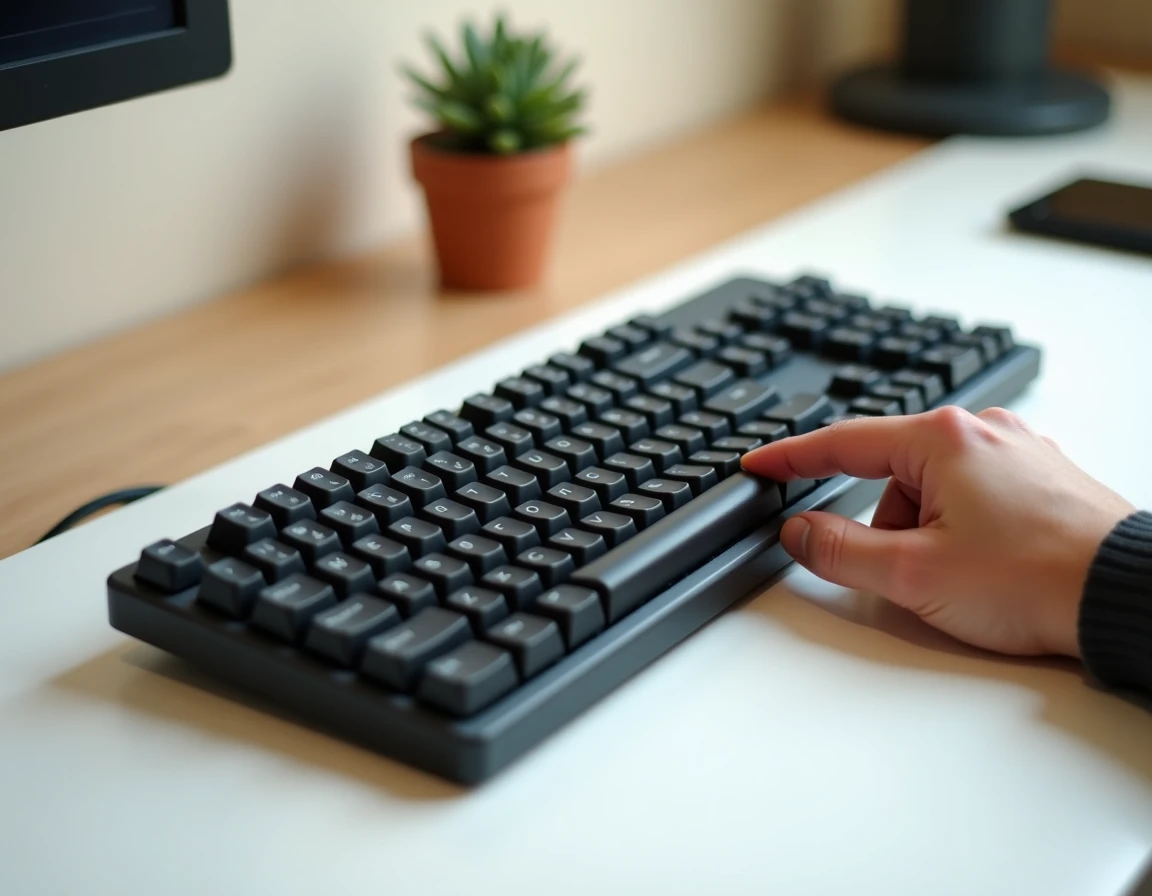
The confusion between a locked keyboard and a keyboard not detected by the system often leads to inappropriate troubleshooting. A locked keyboard receives keystrokes but does not transmit them correctly, while an undetected keyboard simply does not appear in the Device Manager.
Testing keyboard detection in Windows
Open Device Manager by right-clicking the Start button (use the mouse or touchpad). Expand the “Keyboards” section. If your Dell keyboard is not listed there, or if it shows a yellow exclamation mark, the problem goes beyond simple software blockage.
In this case, three actions are worth trying before contacting Dell support:
- Restart the laptop. A complete restart forces Windows to reset the connection with the internal hardware, including the keyboard controller.
- Uninstall the keyboard driver in Device Manager (right-click on the device, then “Uninstall device”), then restart. Windows will automatically reinstall a generic driver on the next boot.
- Disconnect all external USB devices before restarting. A resource conflict between an external keyboard, a USB hub, or a wireless dongle may prevent the internal keyboard from being detected.
The case of external wireless or USB-C Dell keyboards
If you are using a wireless Dell keyboard (via USB dongle or Bluetooth), intermittent behavior, with keys responding only at times, is rarely due to a lock. Intermittent cutouts indicate a pairing or battery issue, not a software blockage.
Check the charge level, remove and then re-pair the dongle, or delete the Bluetooth device in Windows settings before reconnecting it. For USB-C models, test another port: some Dell USB-C ports share their bandwidth with video display, which can create occasional conflicts.
Updating Dell drivers and BIOS to resolve a stuck keyboard
A corrupted or outdated keyboard driver can cause behavior similar to a lock. Dell regularly releases driver and BIOS updates that fix incompatibilities with new versions of Windows.
Updating the keyboard driver from Device Manager
Right-click your keyboard in Device Manager, select “Update driver,” then “Search automatically for drivers.” If Windows finds nothing new, visit the Dell support site. Enter your machine’s service number (Service Tag) to access drivers specific to your model.
Why the BIOS matters in keyboard diagnostics
The BIOS manages communication between hardware and the operating system. An outdated BIOS version may prevent Windows from correctly detecting the keyboard controller after a system update. The BIOS update can be done through the Dell SupportAssist utility or manually from the Dell website. Before any BIOS update, plug the laptop into a power source: a power cut during the process can render the machine unusable.
Hardware checks when software doesn’t resolve anything
If none of the previous steps unlock your Dell keyboard, the problem is likely physical. A few simple checks can confirm this before sending the machine for repair.
Test the built-in keyboard from the BIOS: restart the computer and press F2 to access the BIOS setup. If the keys work in this environment, the problem is software and not hardware. If they do not respond either, the keyboard or its connection cable is at fault.
Visually inspect the surface of the keyboard. Debris stuck under the keys, a small amount of spilled liquid, or a physically pressed key can block the entire operation. On recent Dell models, keyboards can be replaced without disassembling the motherboard, which reduces repair costs.
Connecting an external USB keyboard remains the quickest way to confirm that the rest of the system is functioning. If the external keyboard responds normally, you know that only the internal keyboard is problematic.
The most reliable reflex when facing a stuck Dell keyboard remains the diagnostic by elimination: Windows accessibility first, drivers next, BIOS if necessary, and hardware check as a last resort. This sequence avoids haphazard manipulations and identifies the real cause of the blockage without wasting time.